This article explains How to create work-order for housekeeping staff & completing the task in Mobile Application in Property Management system (PMS) under Yanolja Cloud Solutions:
- How to navigate to the housekeeping work order section
- How to create a new housekeeping task
- How to assign tasks to staff members
- How to set priority and due dates for tasks
A Work Order in a Property Management System (PMS) is a formal service request created to perform a specific housekeeping or maintenance activity within the hotel. It includes structured details such as the location (room or area), type of work, priority, assigned staff, and deadline.
Work orders in a hotel are used for Special room cleaning requests, public area maintenance (such as lobby, spa, or pool), handling urgent service requests and ensuring staff accountability and task tracking through the system.
Before you begin, download the mobile application using the link below:
Playstore: Hotel PMS & Channel Manager
App Store: Hotel PMS & Channel Manager
Follow the steps below:
- Tap on the hamburger menu in the top-left corner of the screen & Navigate to Housekeeping > Work Order.
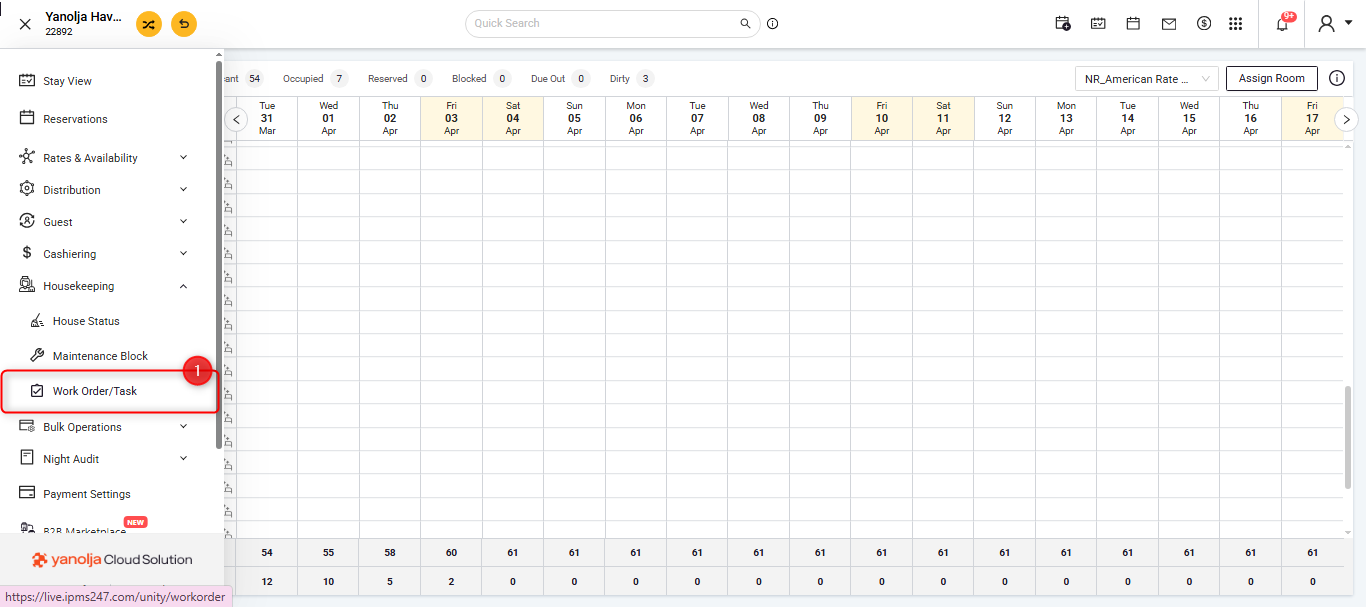
- Tap on Add Task to create a new housekeeping task.
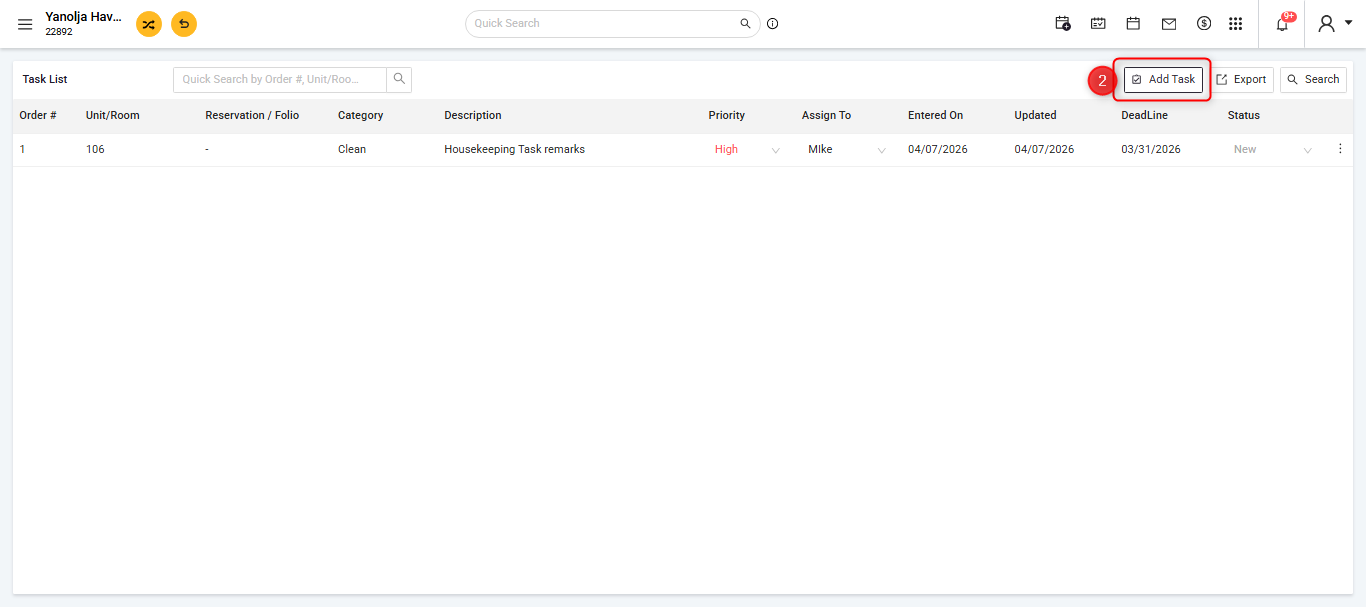
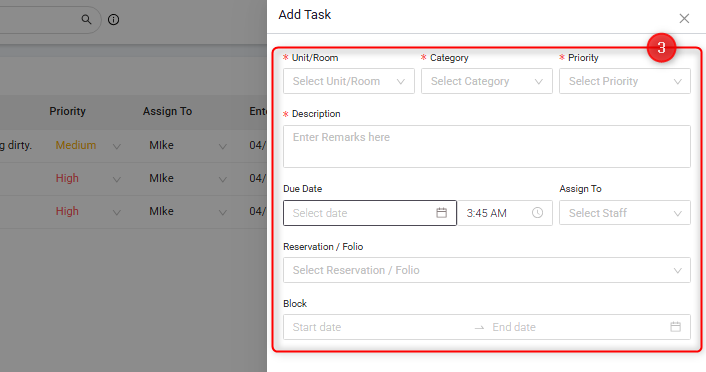
- Select the Room for which the task needs to be created, You can also add different units as well like 'Hotel lobby', 'Spa', 'Swimming pool' etc
- Choose the appropriate Category.
- Set the Priority of the task & Enter a clear Description of the task.
- Select the Due Date.
- Assign the task to the relevant staff member.
- Tap on Save to create the work order.
- The Created task will be reflected in the Mobile application for the housekeeper.
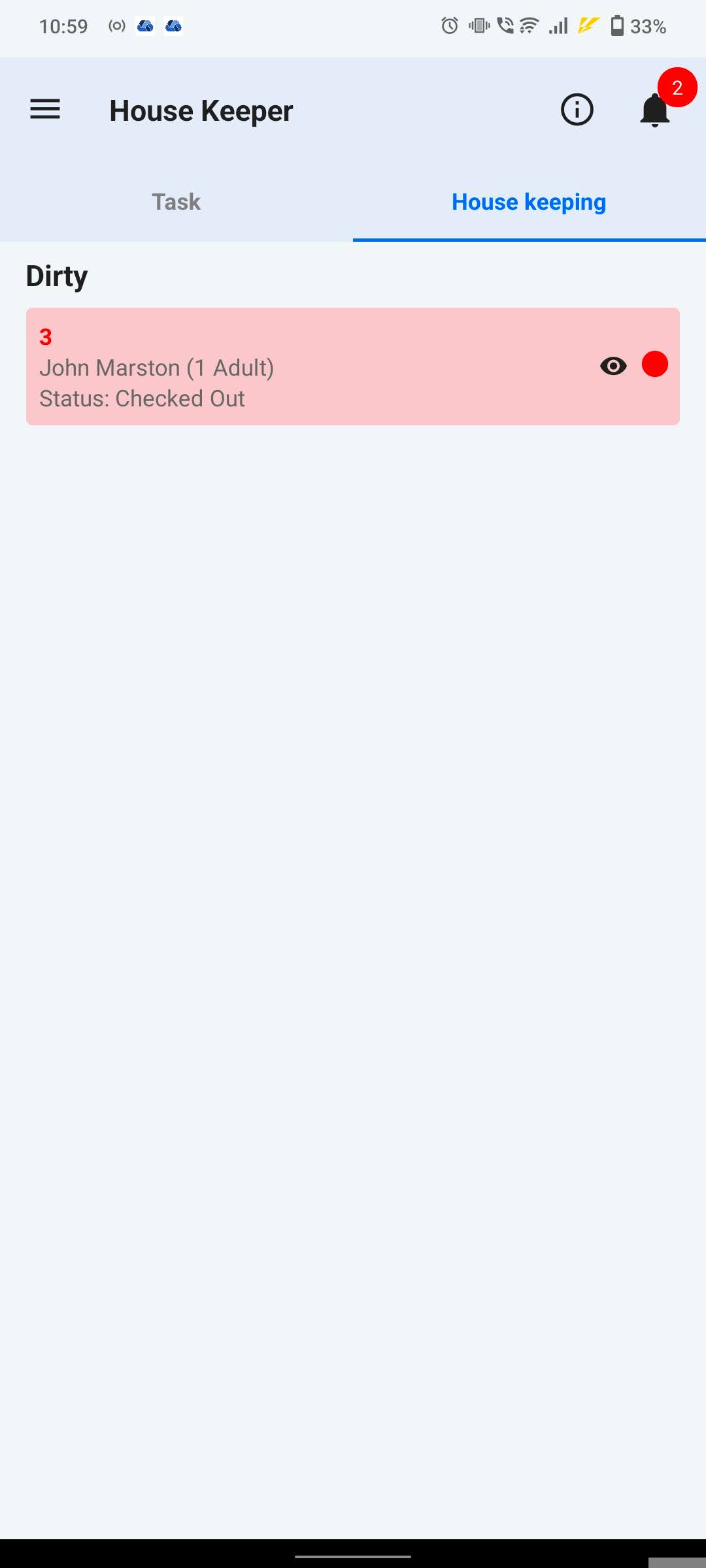
- They can open the task assigned to them and after completing the task, click on 'Clean' to end the task.
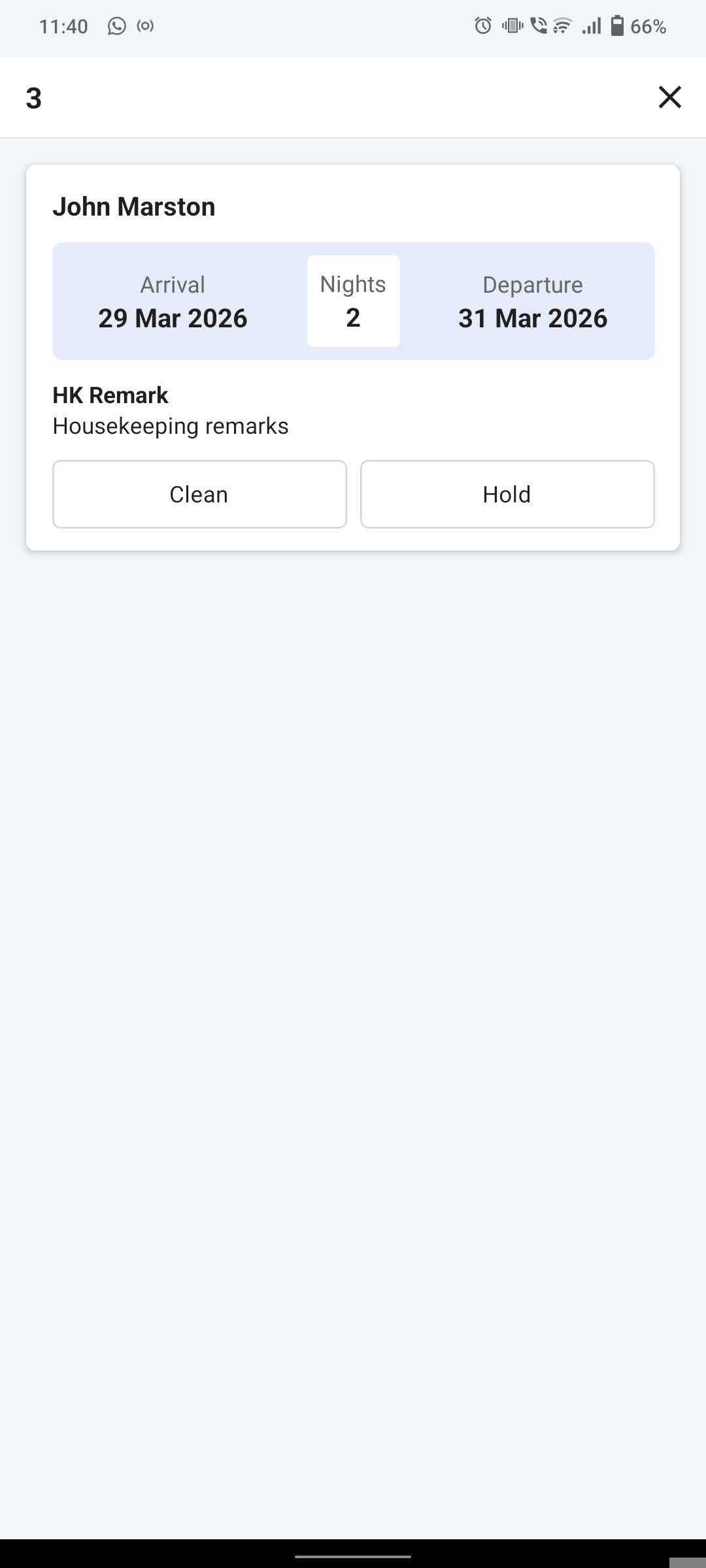
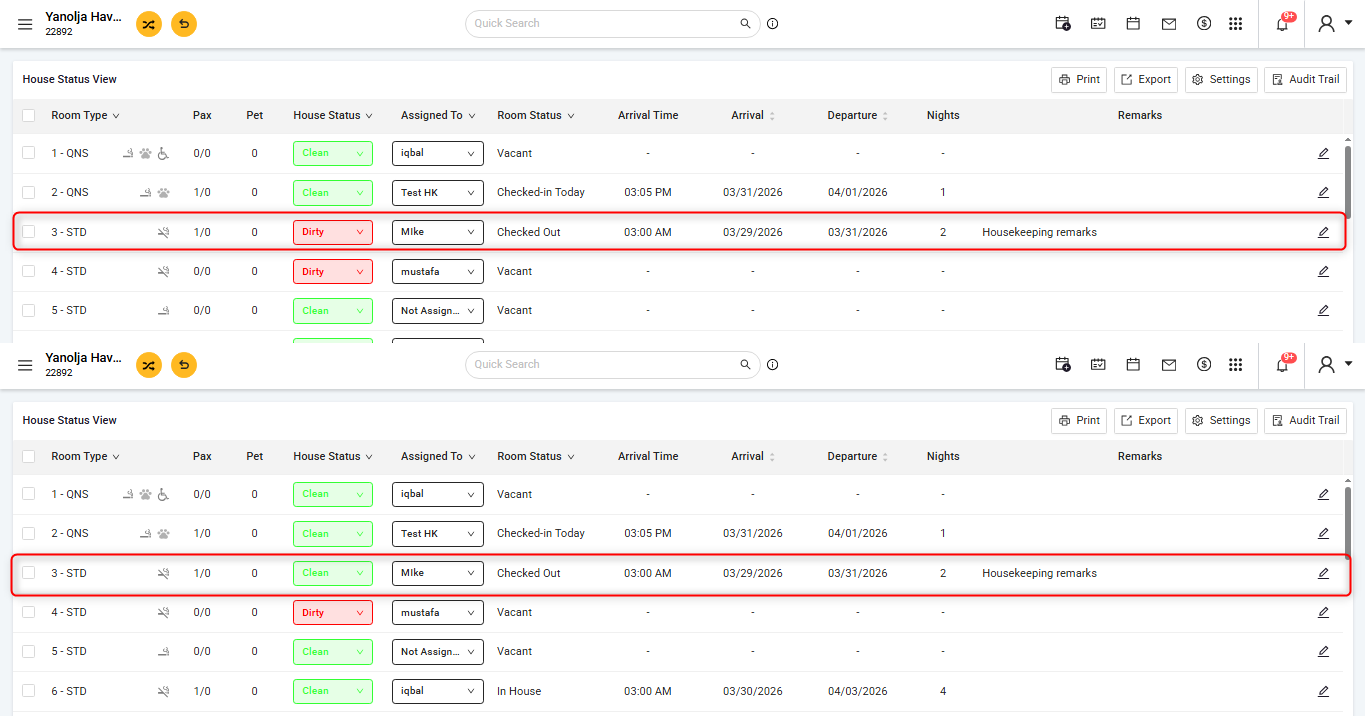
- Once the Housekeeper mark the task as 'Clean' it will automatically update in the system as well.
Was this article helpful?
That’s Great!
Thank you for your feedback
Sorry! We couldn't be helpful
Thank you for your feedback
Feedback sent
We appreciate your effort and will try to fix the article